Managing Tests
Test cases are the building blocks of your testing strategy. Organize them into sections, filter by attributes, and execute them in test runs.
View & Filter Tests
The tests page displays all test cases for a project. Use the powerful filtering and search tools to find specific tests.
Available Filters:
- Priority, Platform, Automation Status
- Squad, Labels, Test Covered By
- Sections (hierarchical organization)
- Combined AND/OR logic
Search: Filter tests by title using the search bar.
Create a Test
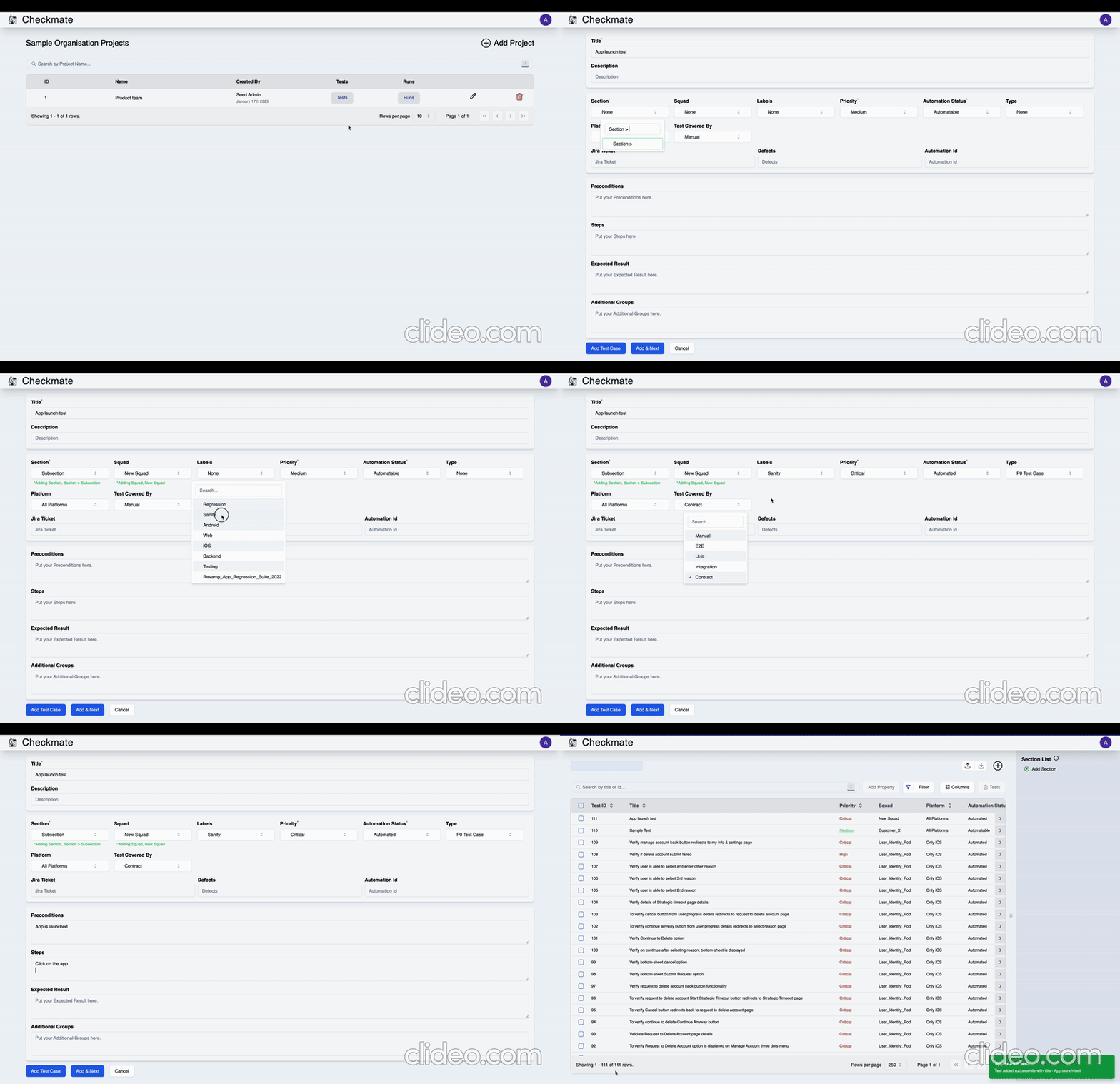
Click New → Add Test and fill in the required fields:
Required Fields:
- Title - Test case name
- Section - Organize tests hierarchically
Default Fields:
- Priority, Automation Status, Platform, Test Covered By
Optional Fields:
- Description, Pre-conditions, Steps, Expected Results
- Squad, Labels, Custom fields
Actions:
- Create Test - Save and return to list
- Add & Create Another - Save and create another test
- Cancel - Discard changes
Create new Sections and Squads on-the-fly while adding tests.
Details
View Demo
Edit a Test
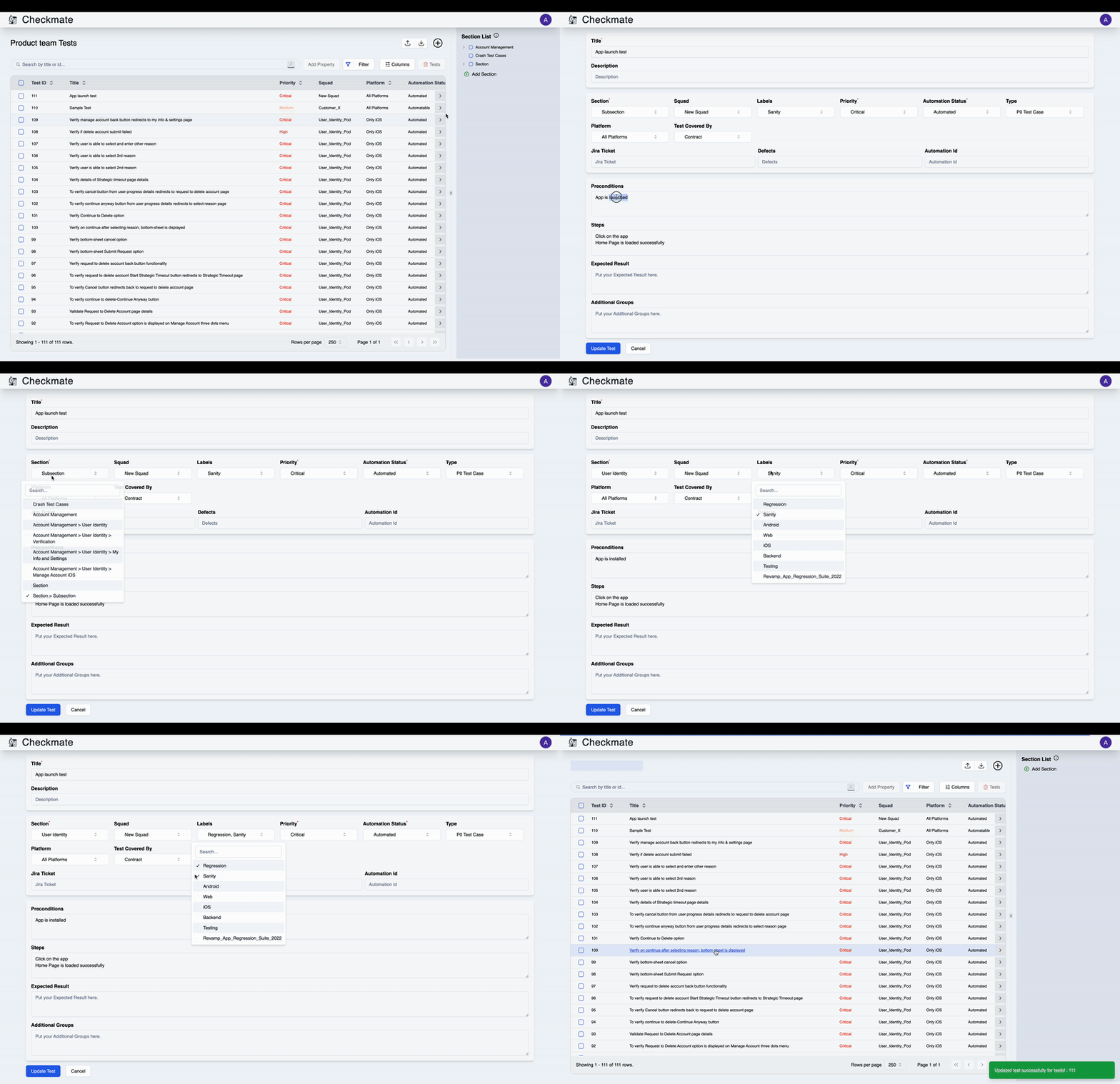
Click the menu icon on any test row and select Edit. Update any field and click Update Test to save changes.
Details
View Demo
Delete Tests
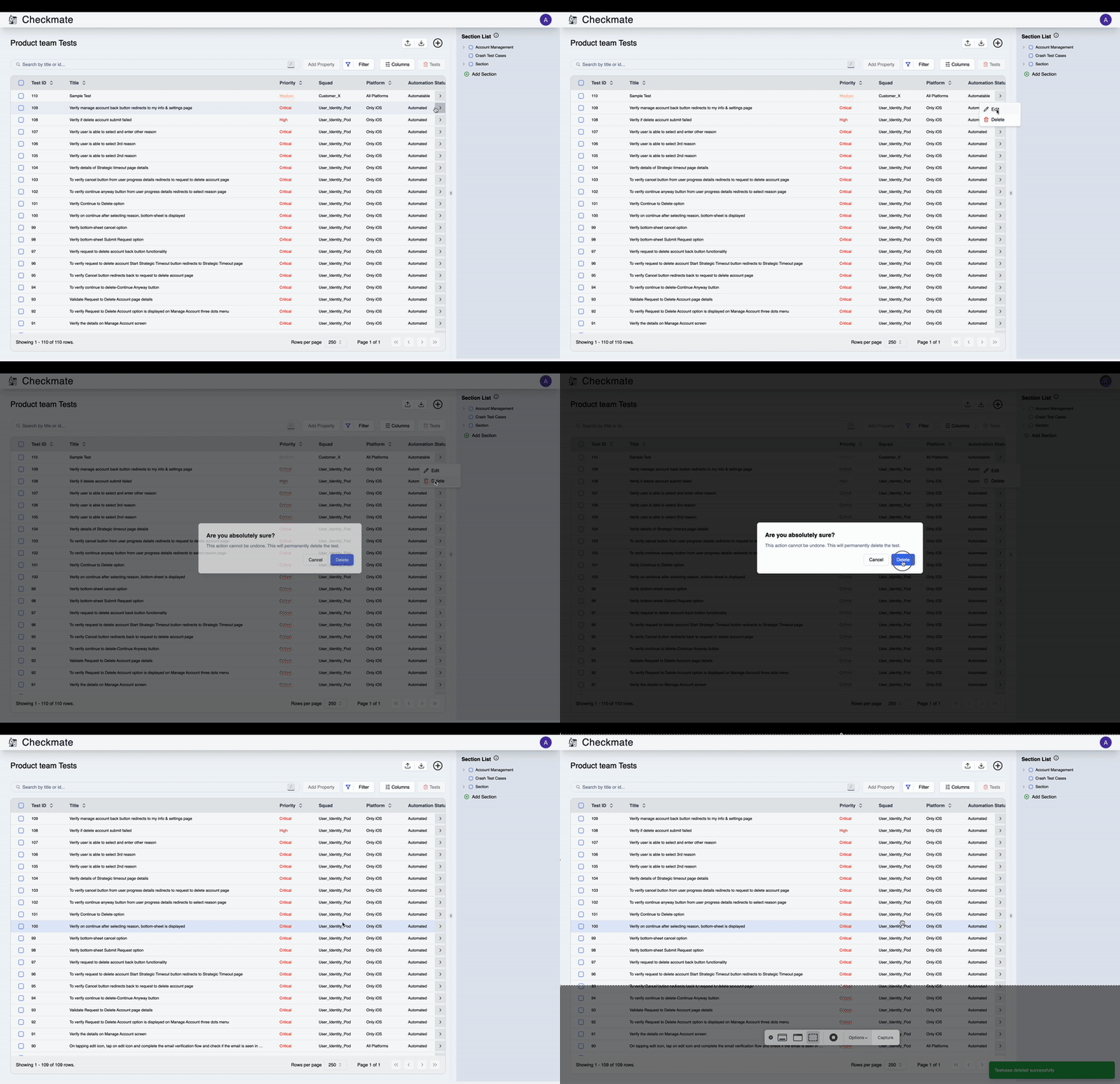
Single Test: Click the menu icon → Delete → Confirm
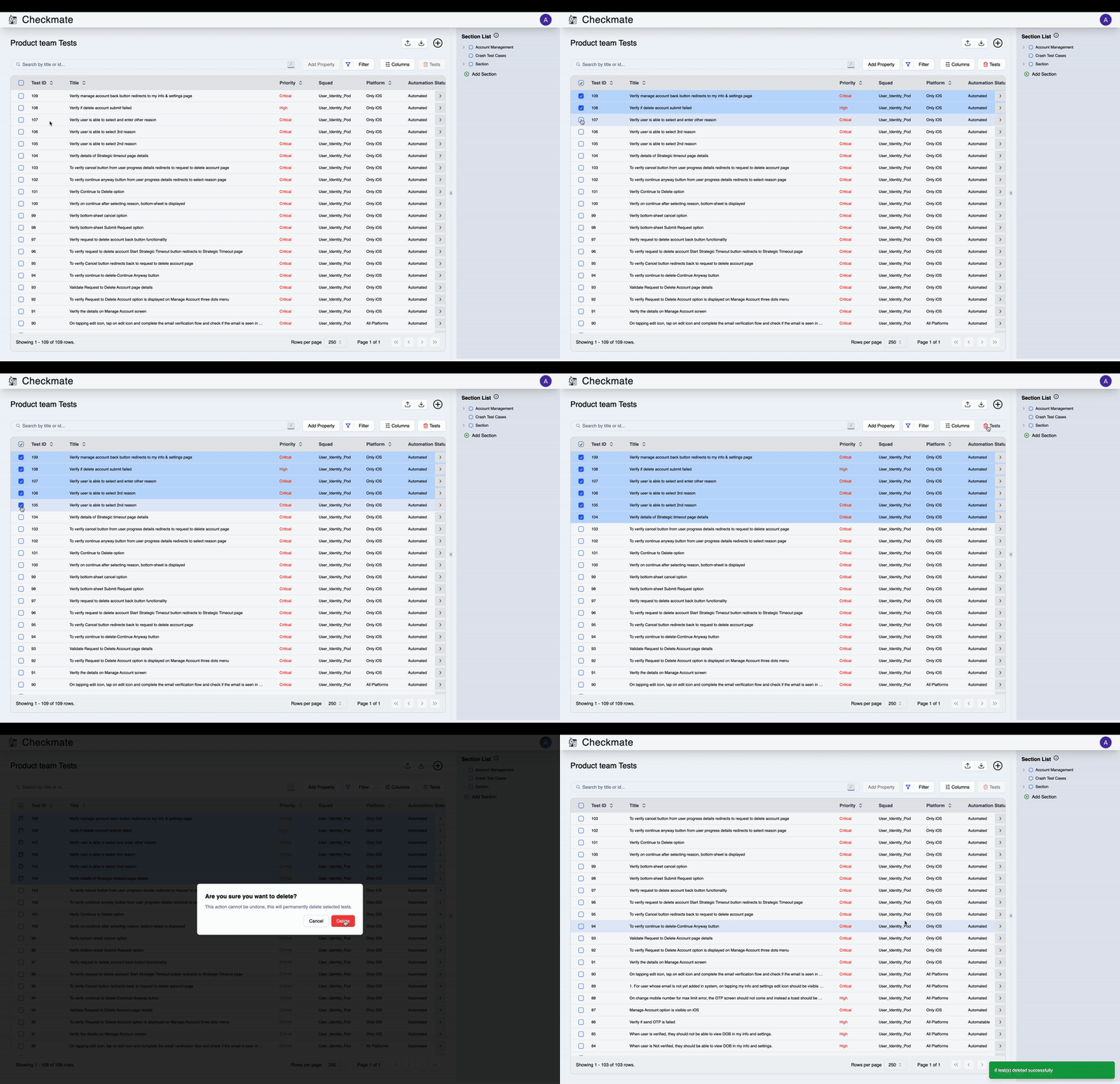
Multiple Tests: Select tests using checkboxes → Delete → Confirm
Deleted tests cannot be recovered.
Details
View Demo - Single
Details
View Demo - Bulk
Bulk Operations
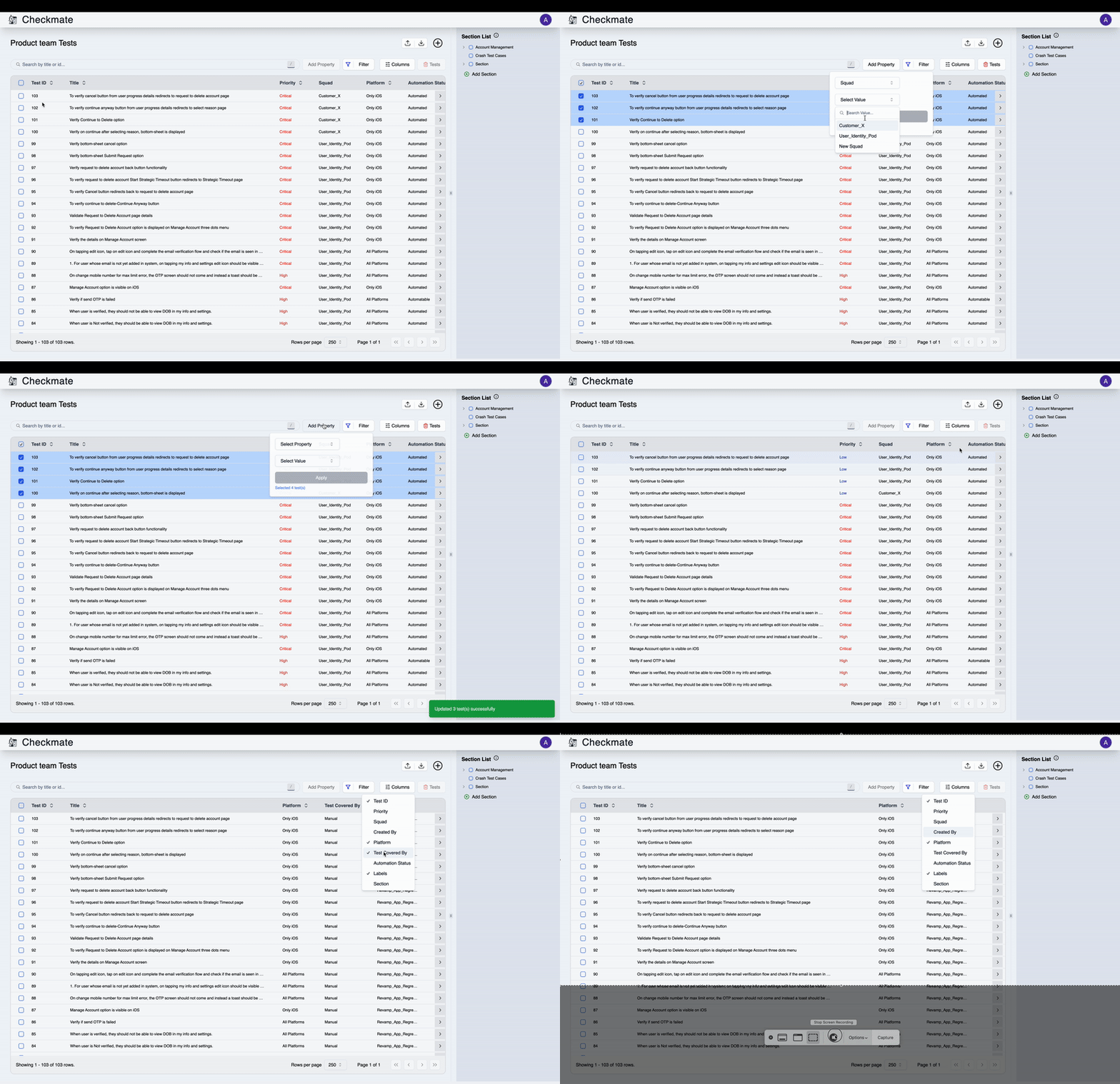
Select multiple tests and use Add Property to update attributes in bulk.
Behavior:
- Labels - Adds to existing labels
- Other Attributes - Replaces current value
Details
View Demo
Sections & Organization
Organize tests into hierarchical sections for better management.
Create Sections: Click New → Add Section or create while adding tests
Section Features:
- Hierarchical structure (parent/child)
- Filter tests by section
- Bulk select by section
Quick Actions
- Upload/Download - Import/export tests in bulk
- View Runs - Access test execution history
- Columns - Customize table view
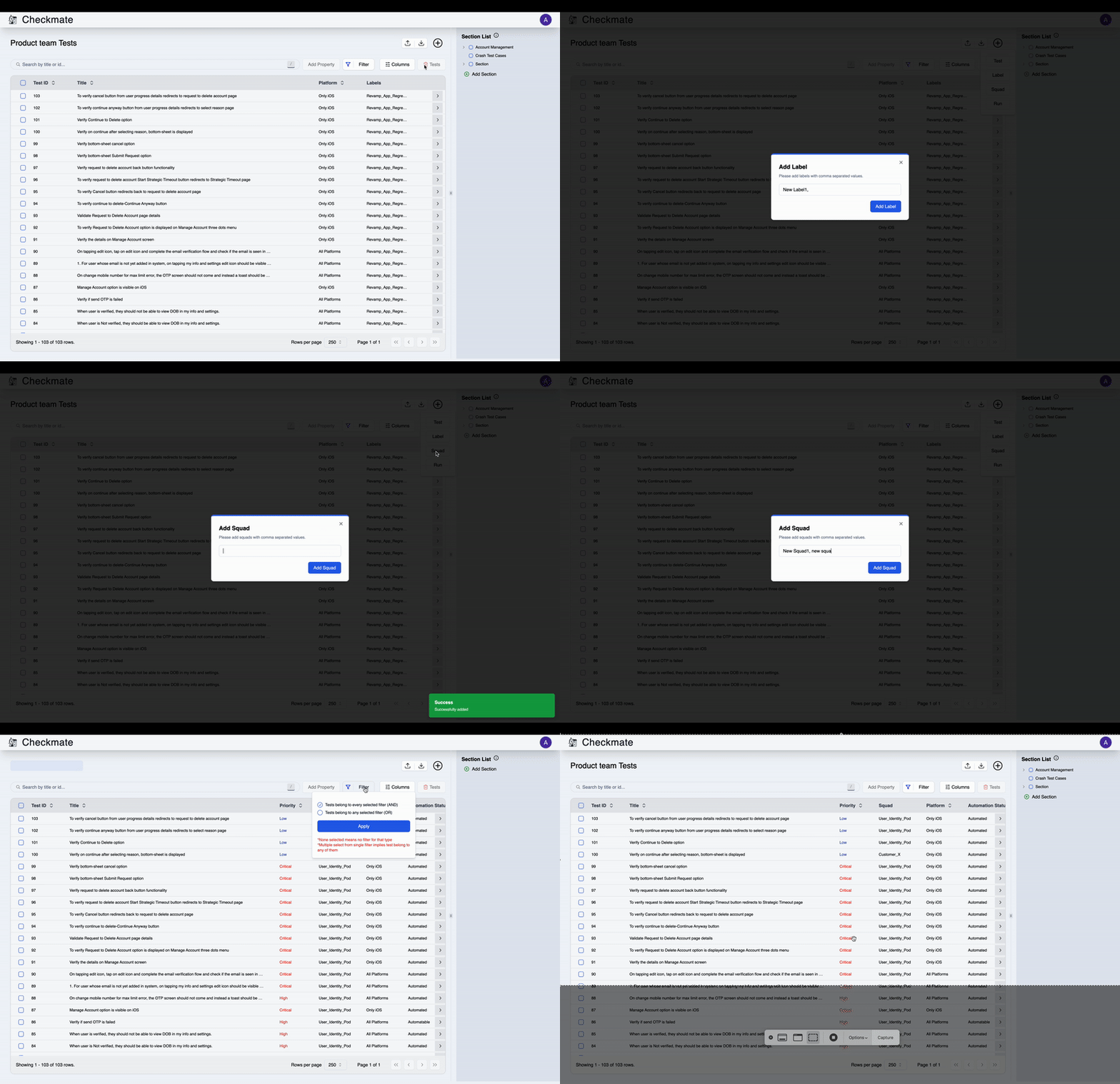
- Add Label/Squad/Run - Quick creation from dropdown
Details
View Demo - Add Label
Next Steps
- Bulk Addition - Import tests via CSV/JSON
- Execute Test Runs - Run and track test execution