Managing Runs
Test runs let you execute test cases and track their results. Create targeted runs with filters, update test statuses in real-time, and lock runs when complete.
View & Filter Runs
The runs page displays all test runs for a project. Toggle between:
- Active Runs - Currently in progress
- Locked Runs - Completed and read-only
Use the search bar to filter runs by name.
Create a Run
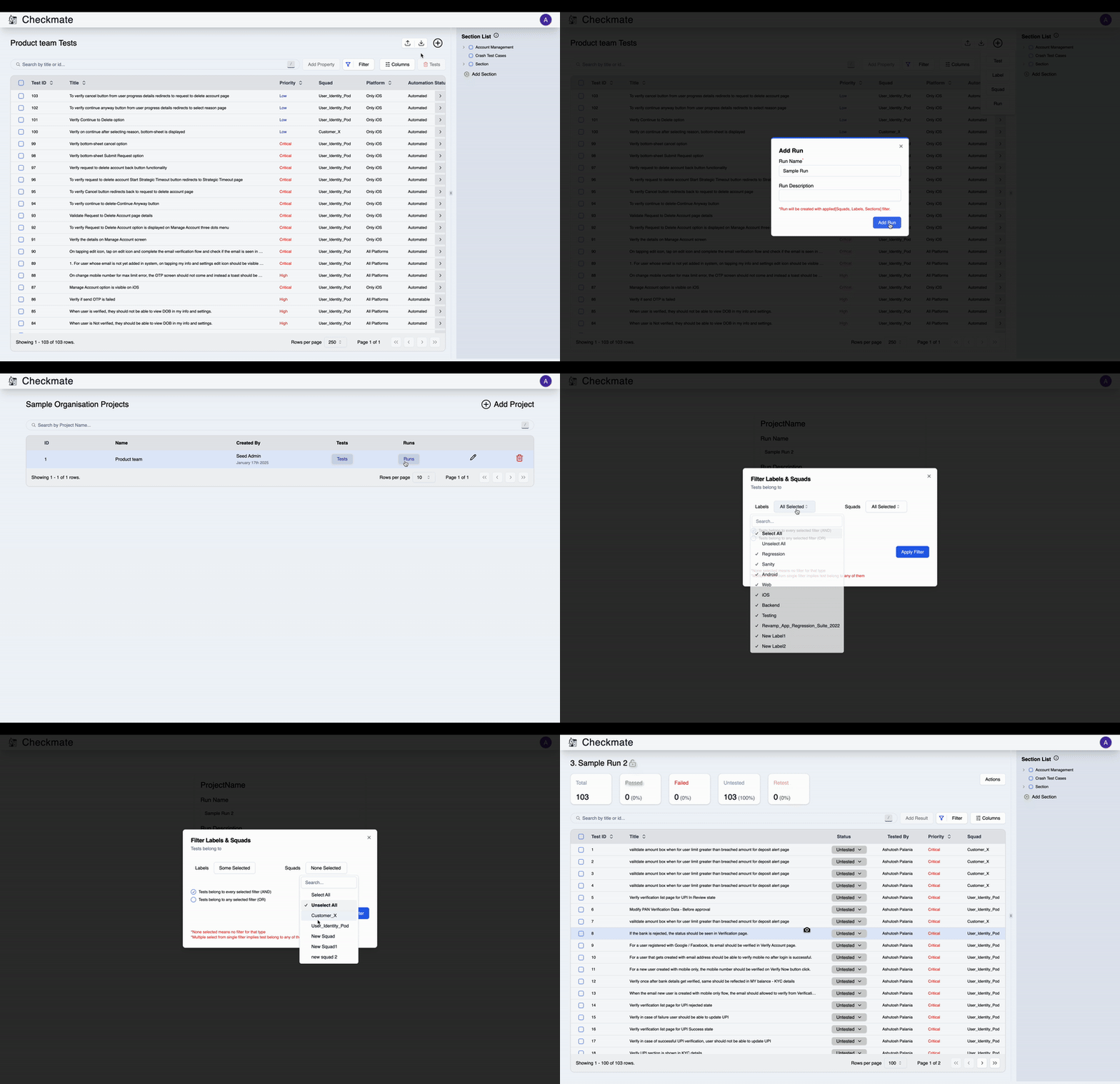
From Tests Page: Click New → Add Run → Enter run name and description → Create
From Runs Page: Click New Run and configure:
Required:
- Run Name - Descriptive name for the run
- Run Description - Brief description of the testing scope
Optional - Filter Tests: Apply filters to include only specific tests in the run:
- Filter by Squad, Labels, or other attributes
- Use AND/OR logic for complex filtering
- Preview test count before creating
Use filters to create targeted runs (e.g., only high-priority tests or specific feature tests).
Details
View Demo
Execute Tests
Click on any run to view and update test statuses.
Update Status: Click on a test → Add Result → Select status and add comments → Submit
Available Statuses:
- Passed
- Failed
- Blocked
- Retest
- Skipped
- Untested (default)
Bulk Actions:
- Select multiple tests → Add Result to update in bulk
- Filter tests within the run for focused testing
Lock/Unlock Runs
Lock completed runs to prevent accidental changes.
Lock: Click Lock → Run becomes read-only Unlock: Click Unlock → Run becomes editable again (Admin only)
Locked runs show who locked them and when. Only administrators can delete runs.
Edit a Run
Click Edit on any run to update:
- Run name
- Run description
- Add/remove tests
Changes are saved immediately.
Reset Run
Reset all test statuses in a run back to "Untested".
Click Reset → Confirm → All results are cleared
Resetting a run removes all test results permanently. This cannot be undone.
Remove Tests
Remove specific tests from a run without deleting them from the project.
Select tests → Remove Tests → Confirm
Download Report
Export run results as CSV for reporting and analysis.
Click Download → CSV downloads with all test results and metadata
Report Includes:
- Test names and IDs
- Current status
- Comments and notes
- Tester information
- Execution timestamps
Next Steps
- View Run Details - Learn about the run detail page
- Manage Tests - Create and organize test cases
- Bulk Import - Import tests in bulk