Run Details
The run detail page is where you execute tests and track their progress. Update test statuses individually or in bulk, view real-time statistics, and manage the run lifecycle.
Run Overview
At the top of the page, view:
- Run Name & Status - Active or Locked
- Test Statistics - Passed, Failed, Blocked, Retest, Skipped, Untested counts
- Run Metadata - Created by, creation date, lock status
- Quick Actions - Edit, Lock, Reset, Remove Tests, Download
Update Test Status
Click on any test to view details and update its status.
Single Test: Click test → Add Result → Select status → Add comments (optional) → Submit
Multiple Tests: Select tests → Add Result → Select status → Add comments (optional) → Submit
Available Statuses:
- Passed - Test executed successfully
- Failed - Test did not meet expected results
- Blocked - Cannot execute due to blocker
- Retest - Needs to be tested again
- Skipped - Intentionally not executed
- Untested - Not yet executed (default)
Add comments when marking tests as Failed or Blocked to document issues for the team.
Details
View Demo
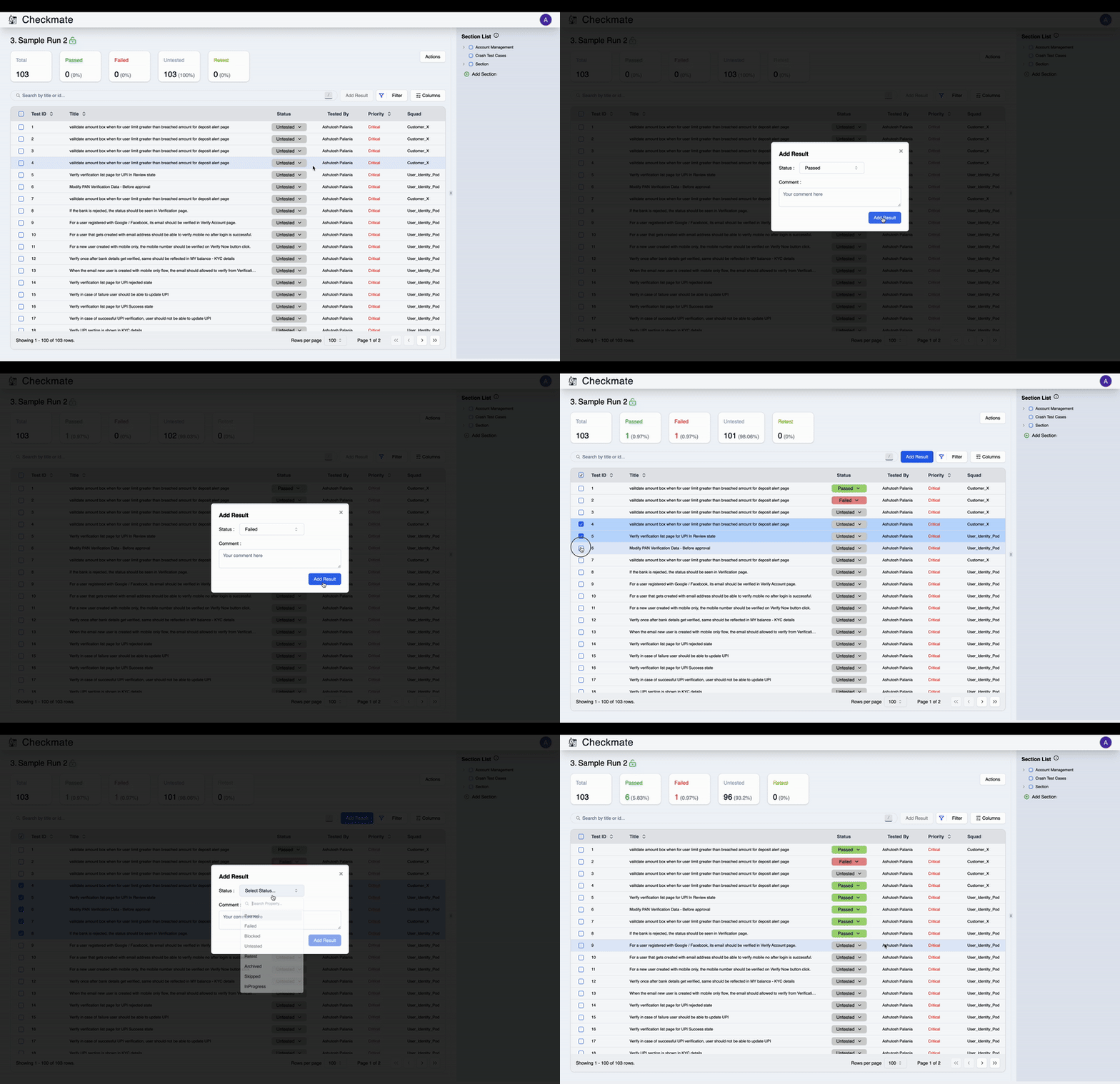
Filter & Search
Use filters and search to focus on specific tests:
- Filter by Status - View only Passed, Failed, etc.
- Search by Title - Find tests quickly
- Section Filter - Navigate hierarchical test organization
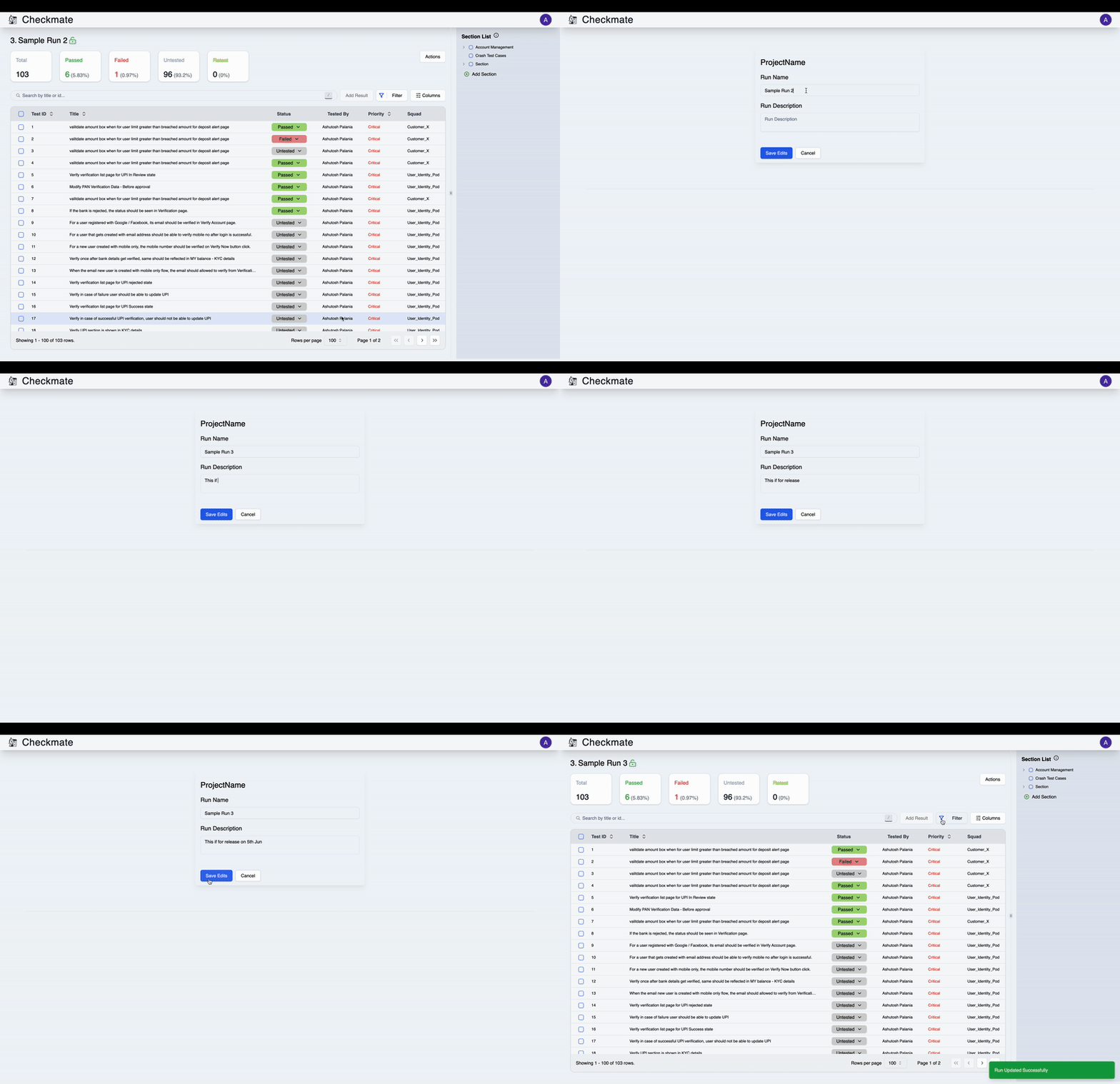
Edit Run
Click Edit to update run details:
- Run name
- Run description
Changes save immediately.
Details
View Demo
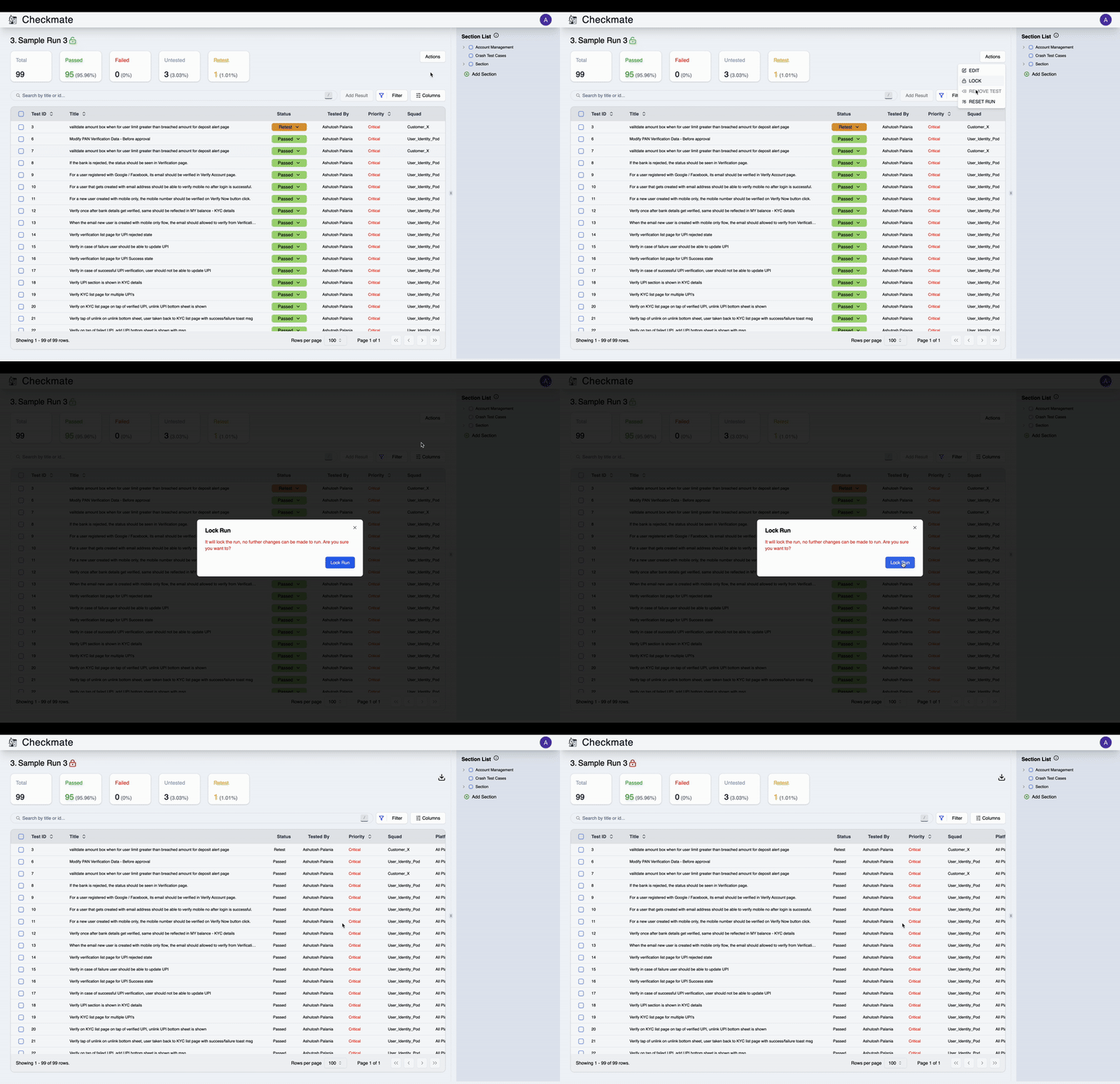
Lock Run
Lock the run when testing is complete to prevent further changes.
Click Lock → Confirm → Run becomes read-only
Locked Run Features:
- No test status updates allowed
- Shows who locked the run and when
- Only admins can unlock
- Download report remains available
Locking is permanent until an administrator unlocks the run. Use this when testing is complete.
Details
View Demo
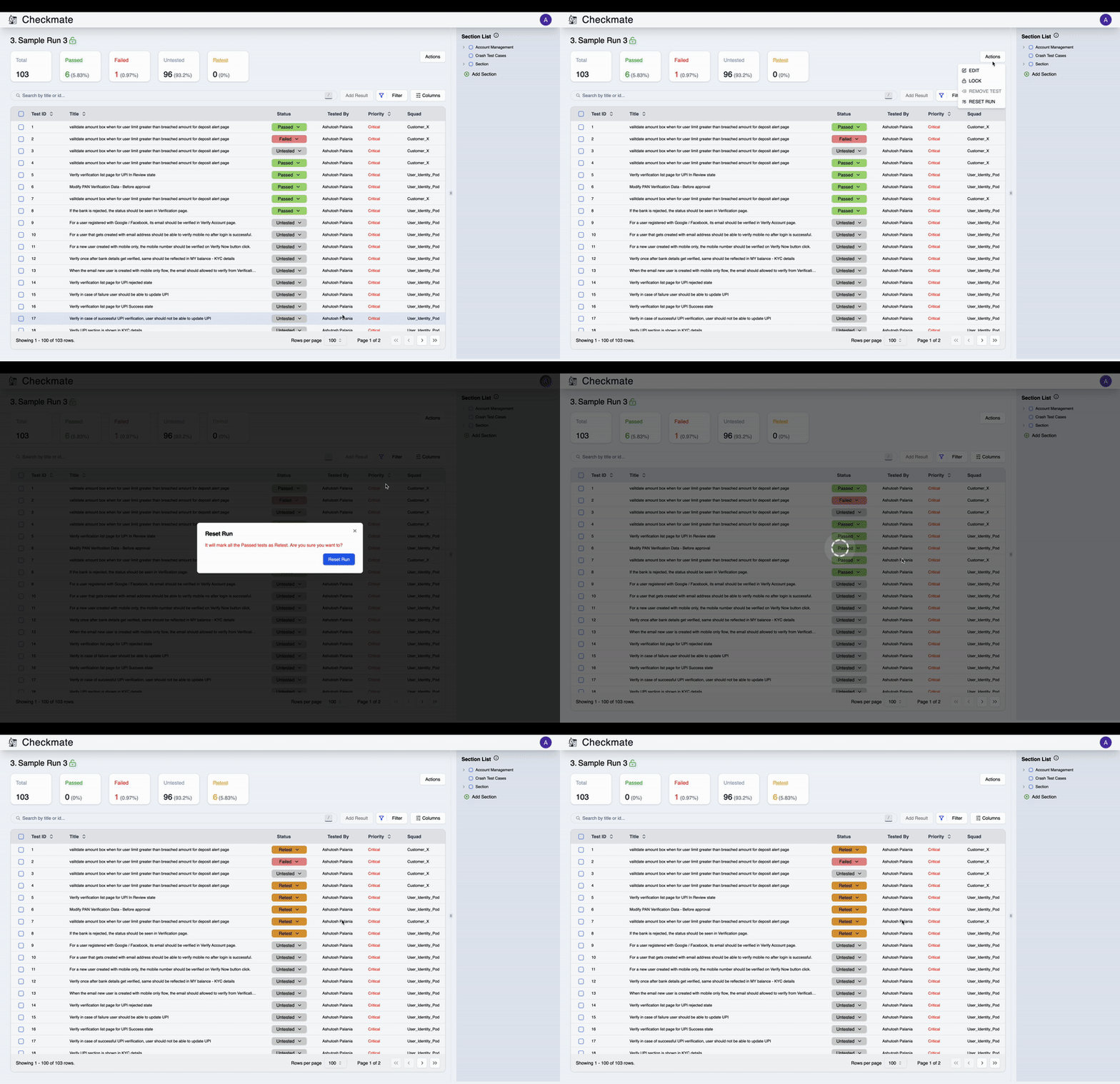
Reset Run
Reset all test statuses back to "Untested" to re-execute the entire run.
Click Reset → Confirm → All test results cleared
This removes all test results and comments permanently. Use with caution.
Details
View Demo
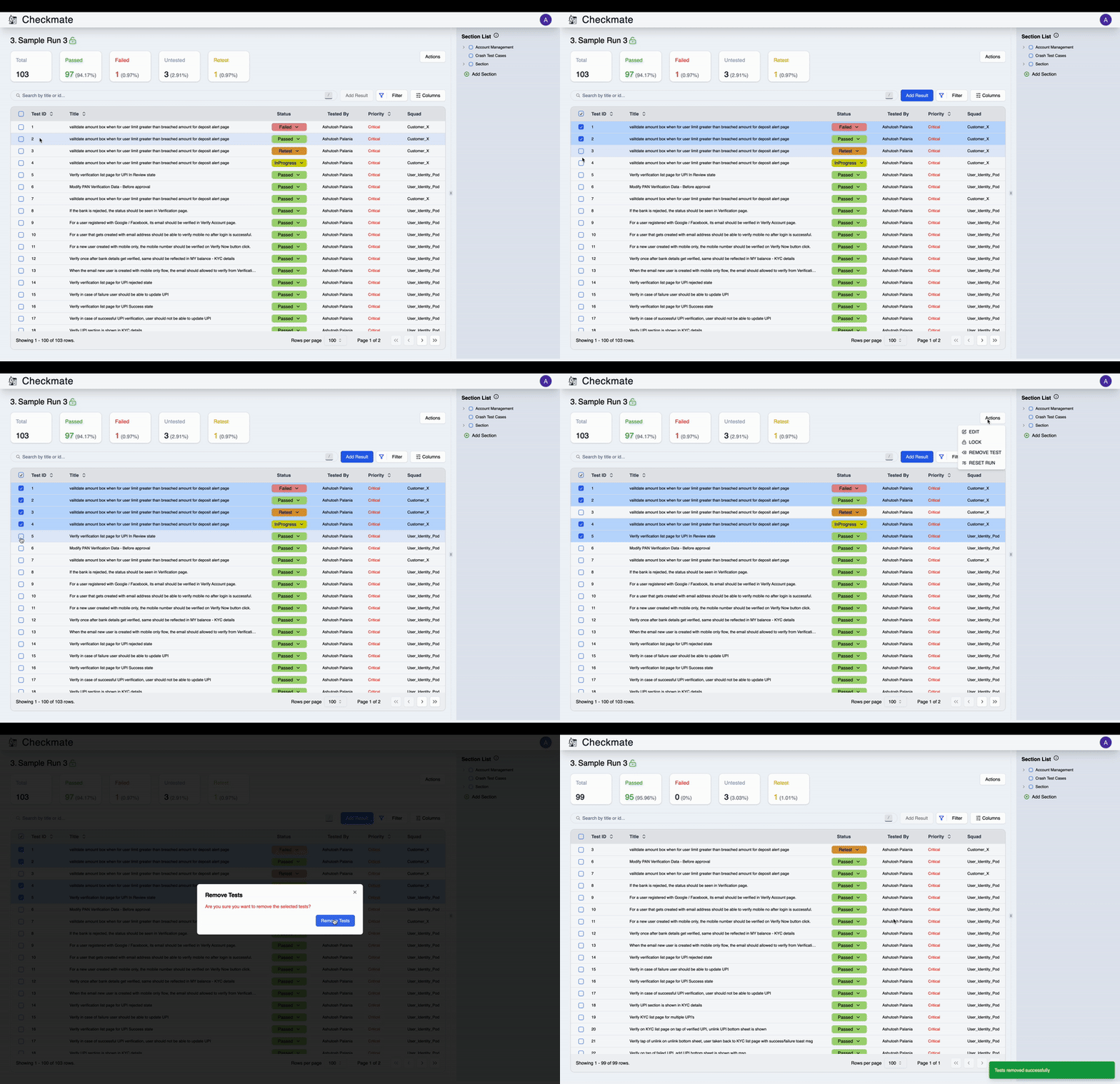
Remove Tests
Remove specific tests from the run without deleting them from the project.
Select tests → Remove Tests → Confirm
Removed tests can be re-added by editing the run or creating a new run.
Details
View Demo
Download Report
Export run results as CSV for analysis and reporting.
Click Download → CSV file downloads with complete test results
Report Contents:
- Test details (ID, title, section)
- Current status and history
- Comments and notes
- Tester information
- Timestamps
Next Steps
- Manage Runs - Learn about run creation and management
- Manage Tests - View and organize test cases
- Bulk Import - Import tests in bulk